
MyGolfShotZ
Shot Tracking Mode
The most important shot in golf is the next one.
-- Ben Hogan
Shot Tracking Mode helps you stay focused on one shot at a time.
As you play, MyGolfShotZ captures:
where each tee and approach shot was played from,
which club you used,
and how the shot went
It also keeps track of your short game and putting, so you finish each hole with a clear picture — and a round that you can review later.
Getting started
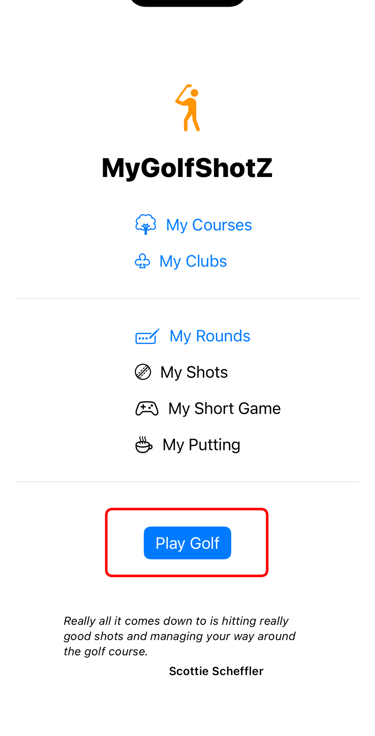
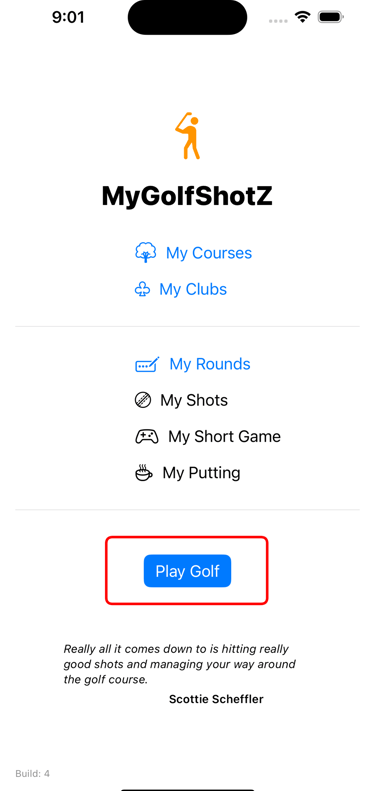
If you completed the Initial Setup, you will be able to tap Play Golf on the Home screen.
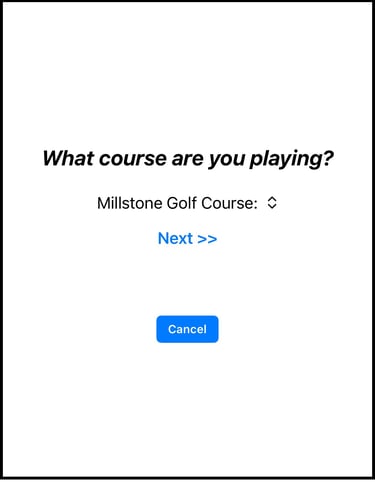
Choose your course
(if you have added more than one)
Than tap Next >>
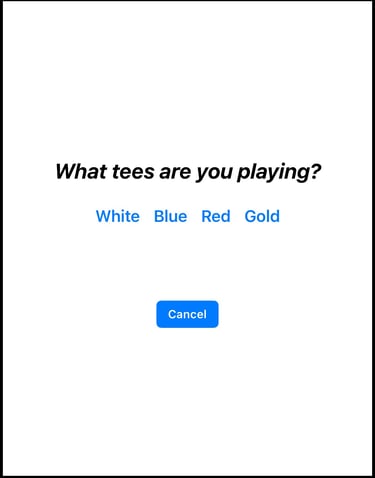
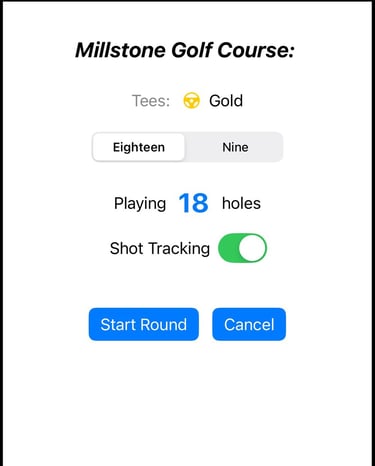
Choose Tees
Choose the tees you’ll play.
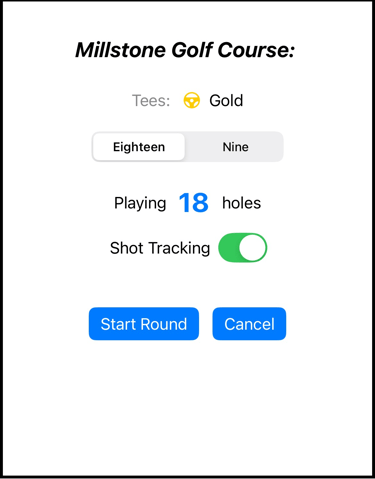
Round details
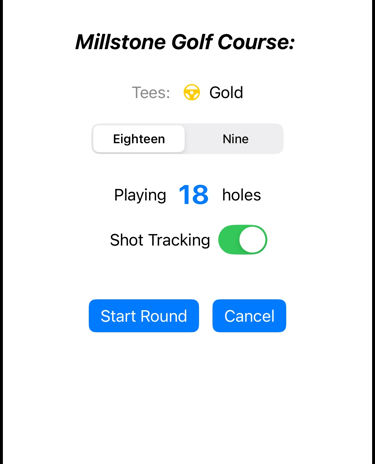
Choose 9 holes or 18.
Make sure Shot Tracking is set to On (default)
Tap Start Round.
Set your ball location
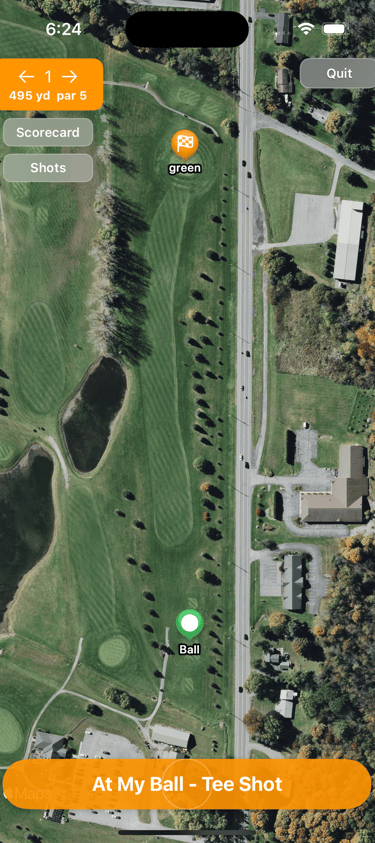
When you reach the tee box on your first hole:
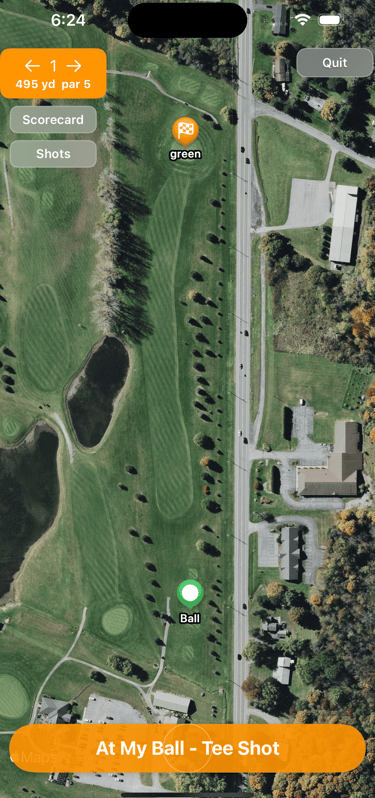
Tap At My Ball - Tee Shot
This tells MyGolfShotZ where your first shot begins.
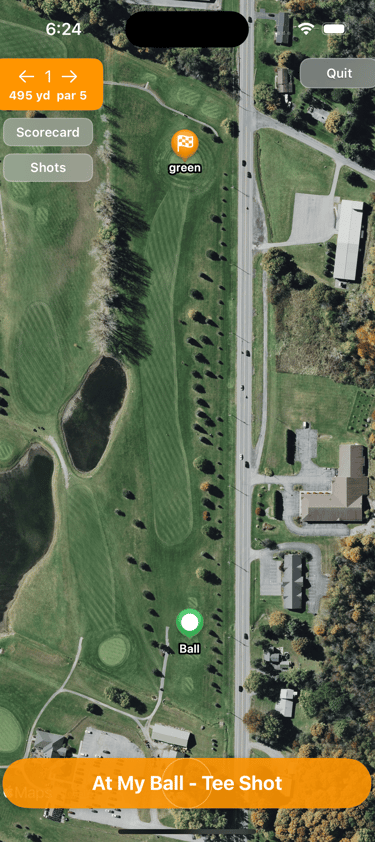
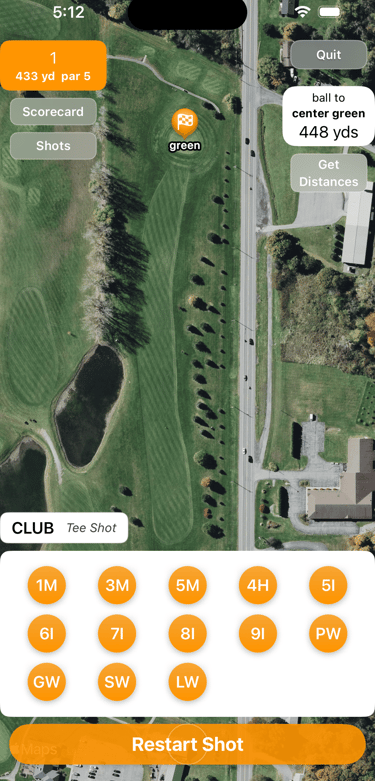
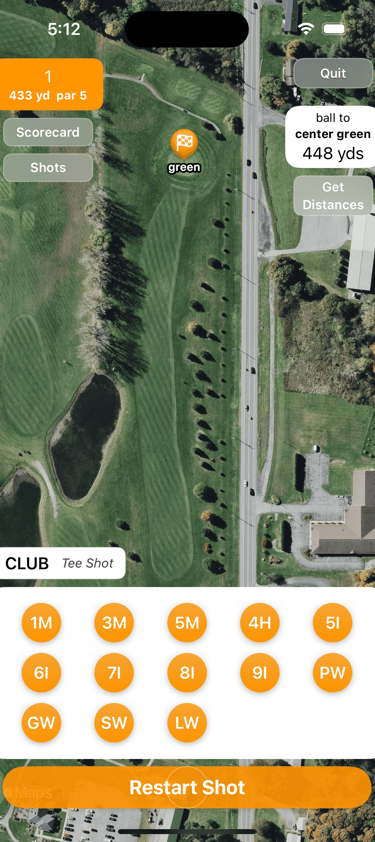
Yards to green + Choose club
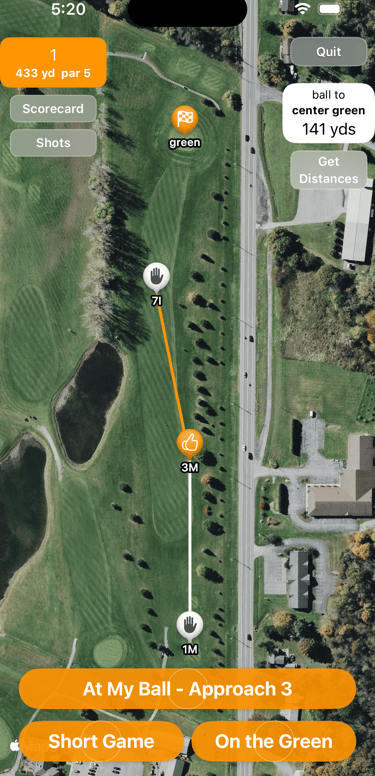
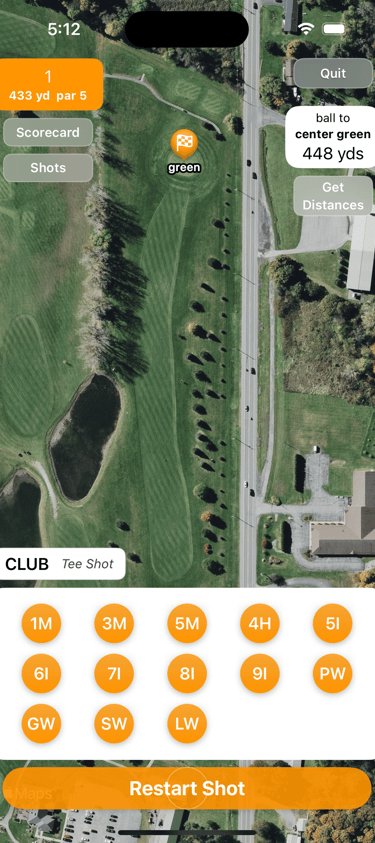
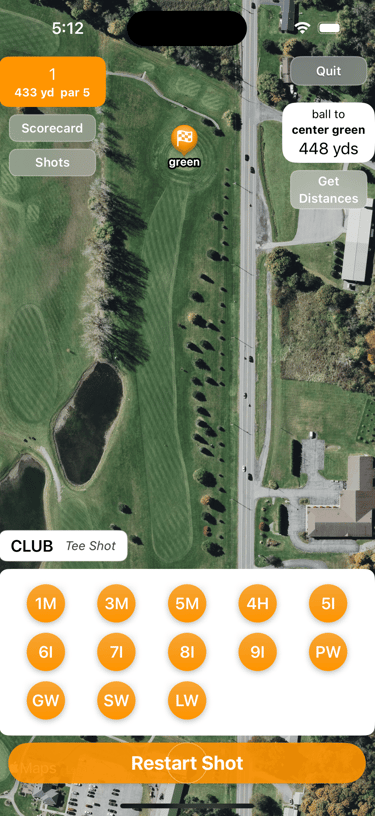
Once your ball location is set, you’ll see the distance to the center of the green
Tap the club selector at the bottom to choose your club.
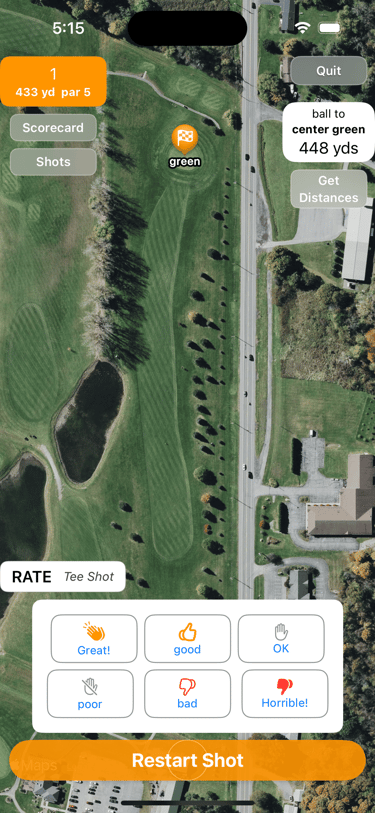
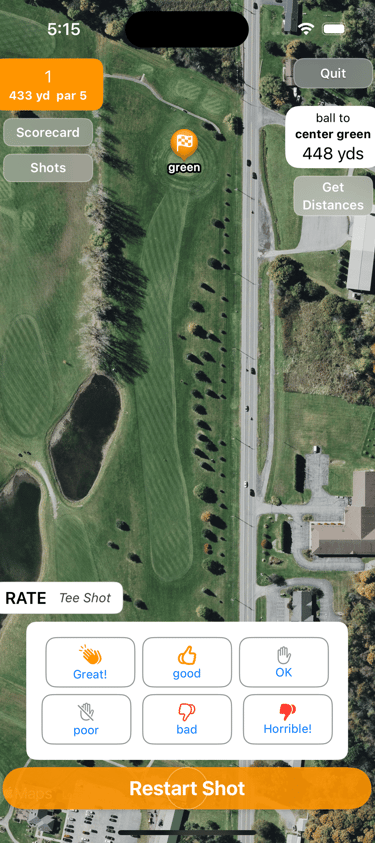
Rate your shot
Hit your shot, and rate it.
For calculating ZScore:
Your ZScore for the hole is the sum of these ratings.
ZScore Out, In, and Total Round ZScore are also calculated automatically.
Next Shot
When you reach your ball again:
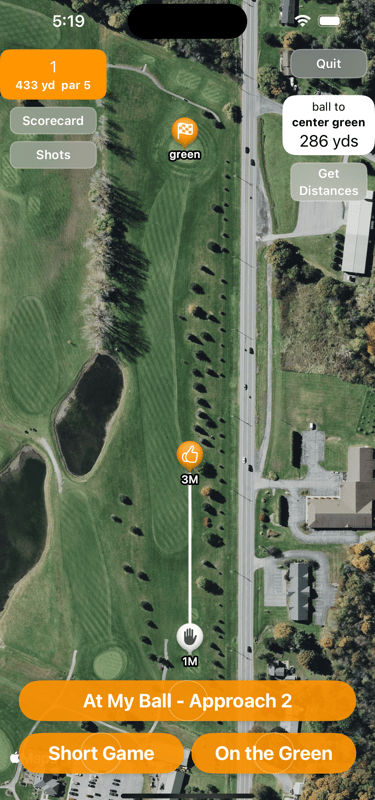
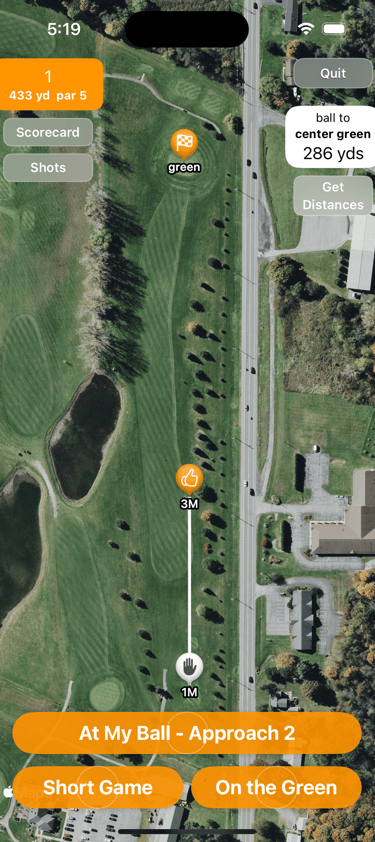
Tap At My Ball - Approach
MyGolfShotZ recorded the location, club and shot rating for your tee shot, and now it knows how far you hit that shot.
Repeat this process for every Tee and Approach shot:
At My Ball → Choose Club → Rate Shot
Get distances
At any time after marking your first shot location:
Tap Get Distances (upper right)
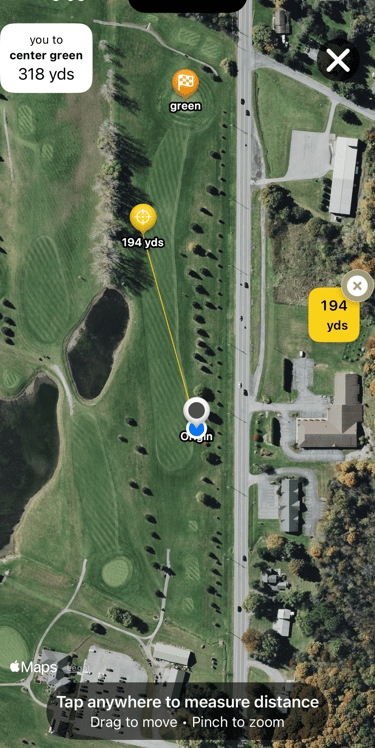
You’ll see a new map where you can get distances.
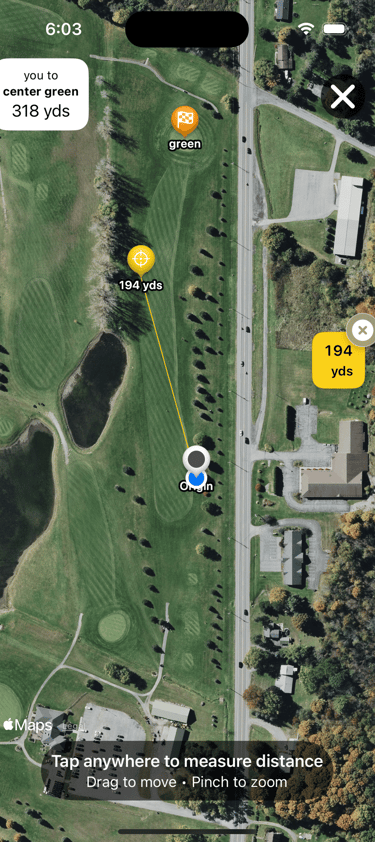
Tap for yardage
You will see a distance from your location to the center of the green.
The little blue dot is your current location.
You can tap anywhere to get a distance from your location.
Your location and center green yardage update automatically as you walk.
Near the green?
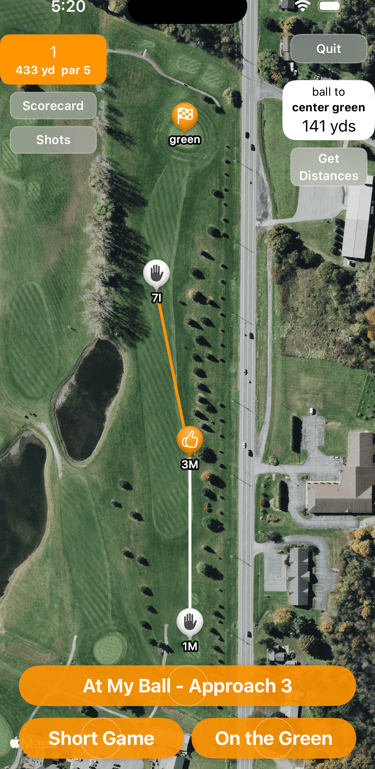
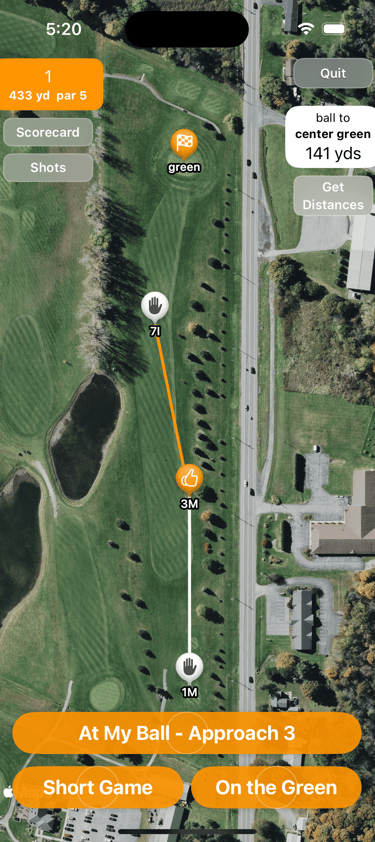
Once you hit your ball on or near the green, tap Short Game or On the Green and forget about your phone until the hole is complete.
You can add short game and putting details after your ball is in the hole.
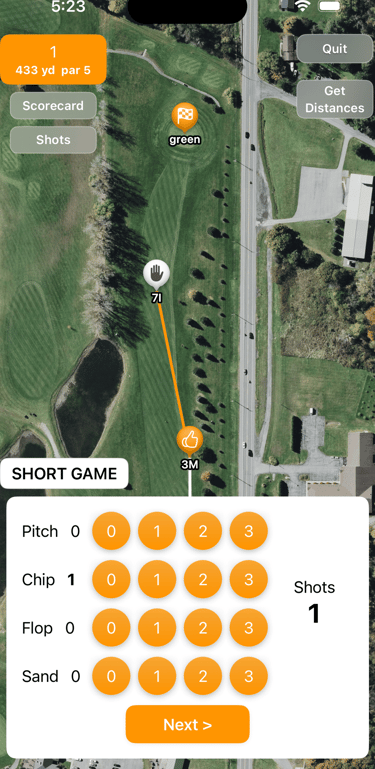
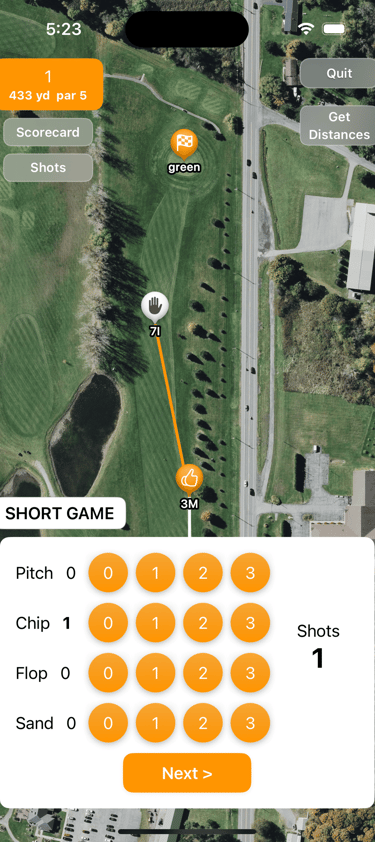
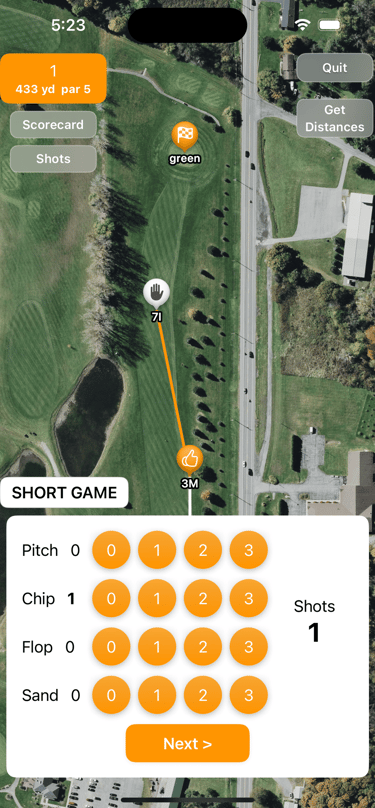
Short Game
Tap # of short game shots (Pitch, Chip, Flop or Sand)
Tap Next, then rate your short game.
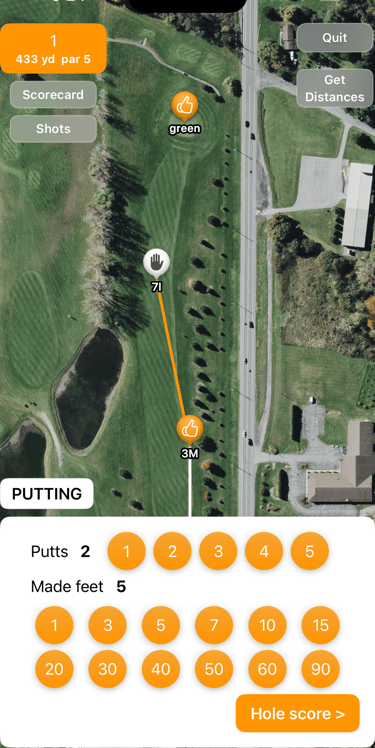
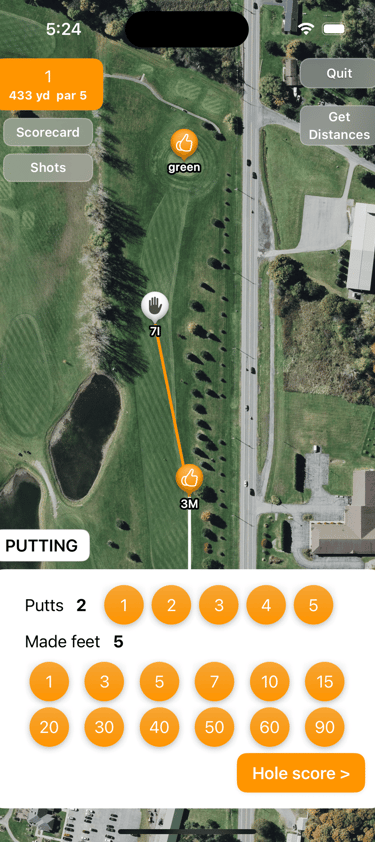
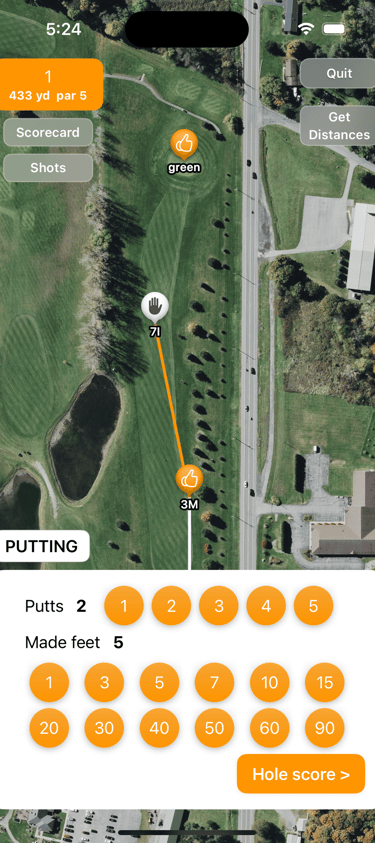
Putting
Tap # of putts, and the estimated feet of your last putt.
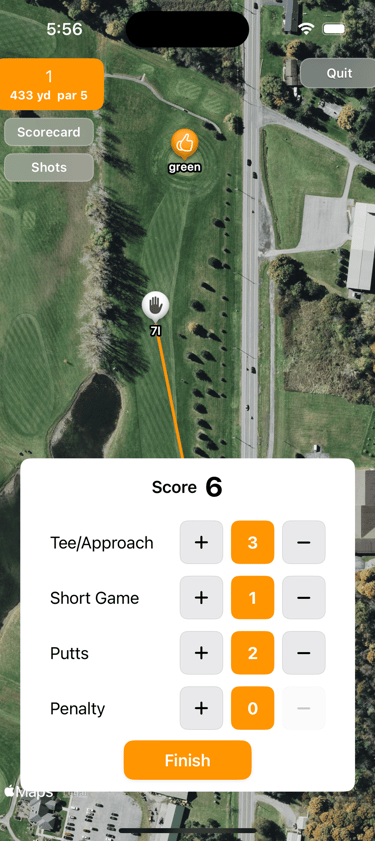
Tap Hole Score >
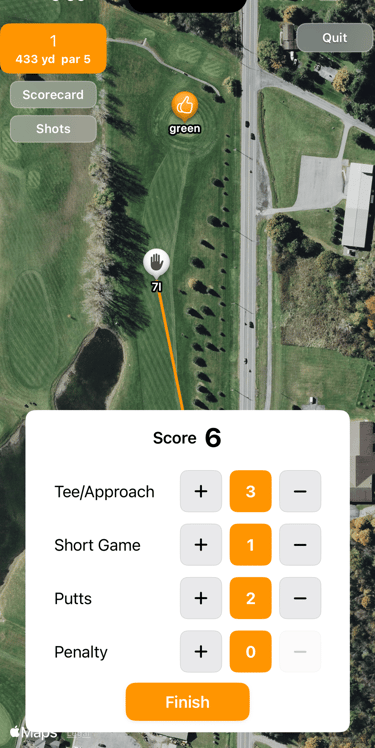
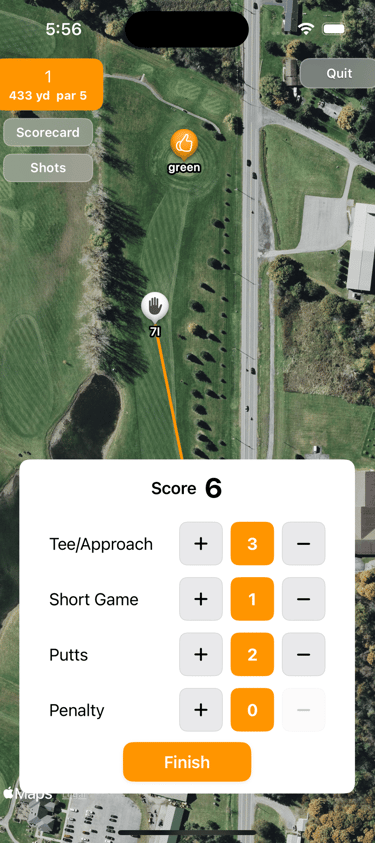
Finish Hole
Review:
Tee and approach shots
Short game shots
Putts
Penalty strokes
Tap Finish to move to the next hole.
Review hole
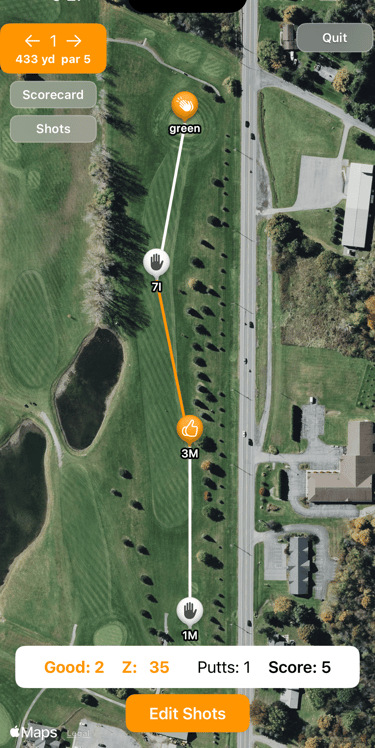
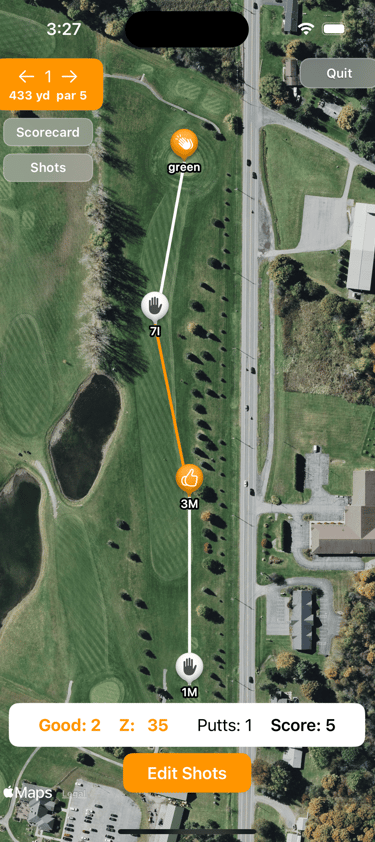
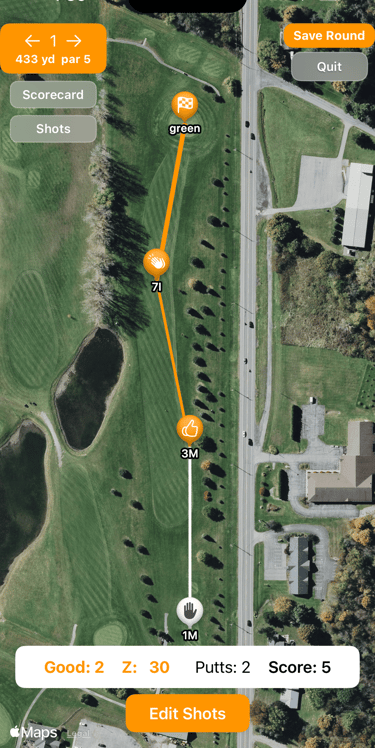
A hole that has already been played will show Good Shots (including Great!) and ZScore at the bottom of the screen. ZScore is the sum your ratings.
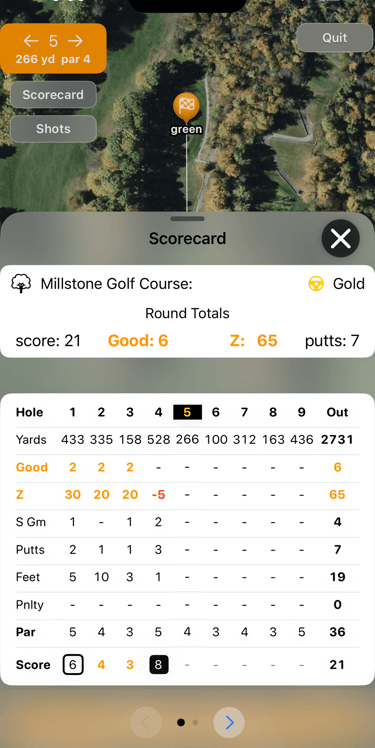
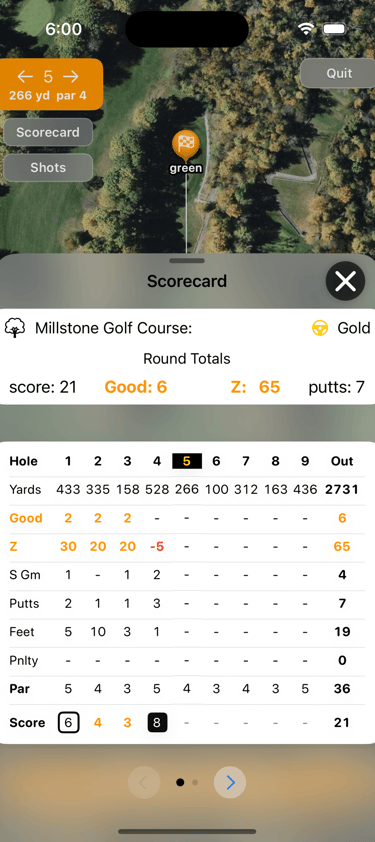
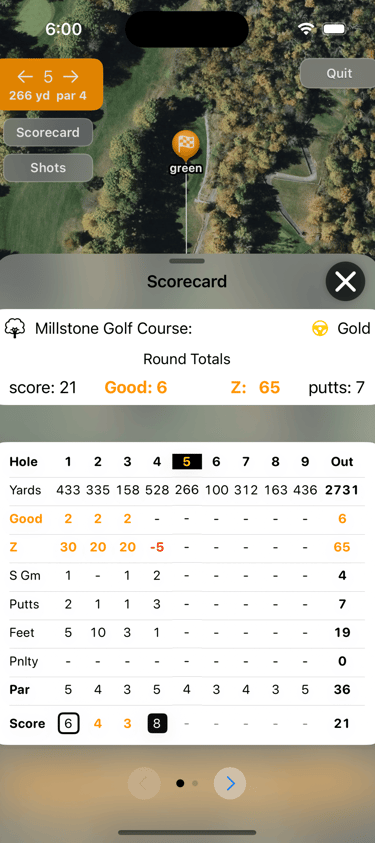
View Scorecard
Tap on Scorecard to see a scoring summary, including Good shots, ZScore, short game shots, putts, feet of putts made, and score.
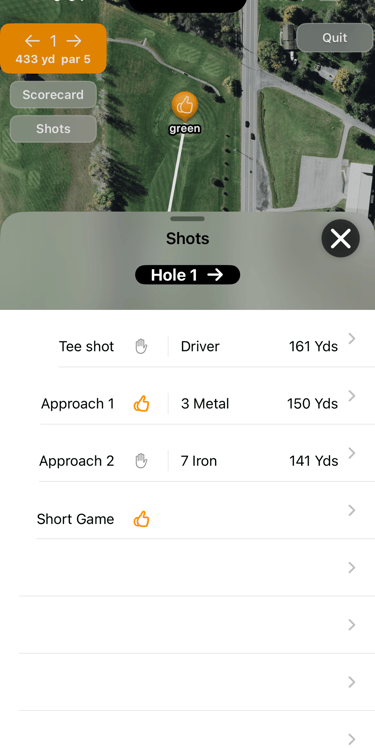
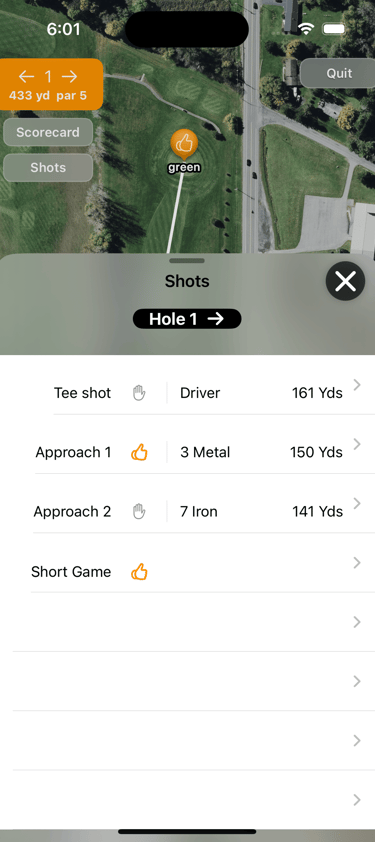
View Shots
Tap on Shots to see shots for a hole.
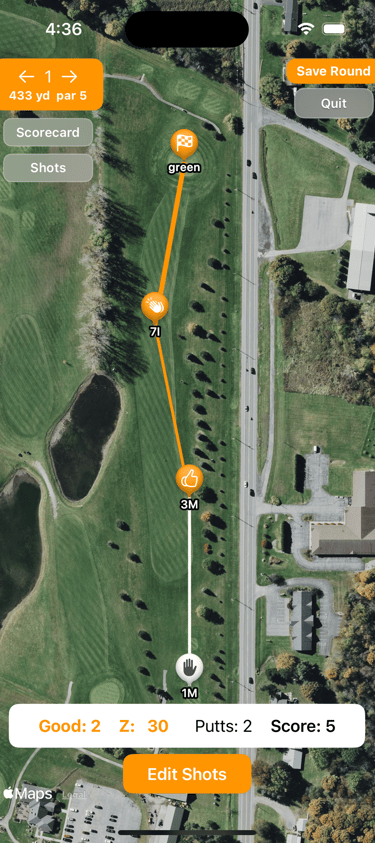
Save your round
Once you've completed your round, tap Save Round to store it for later review.
Great! +15
Good +10
OK +5
Horrible! -15
Bad -10
Poor -15
Getting started
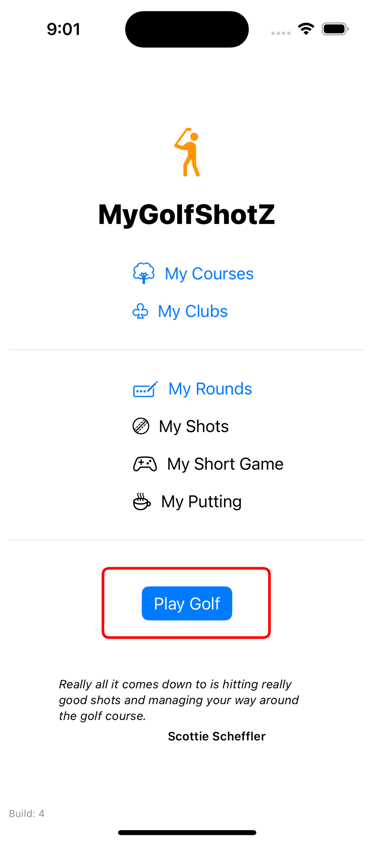
If you completed the Initial Setup, you will be able to tap Play Golf on the Home screen.
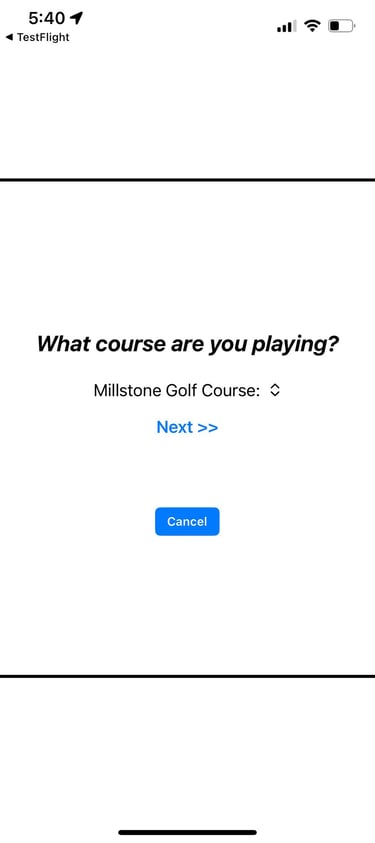
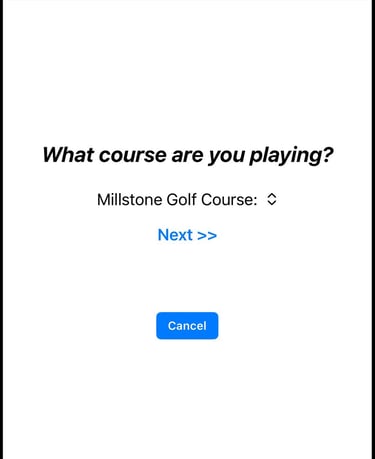
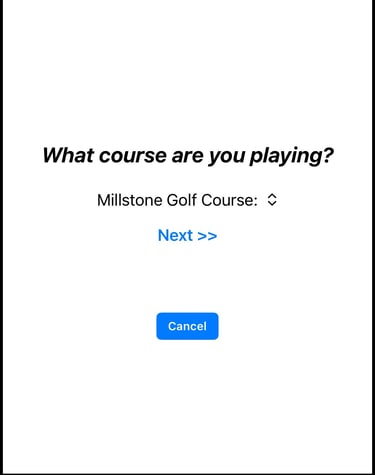
Choose your course
(if you have added more than one)
Than tap Next >>
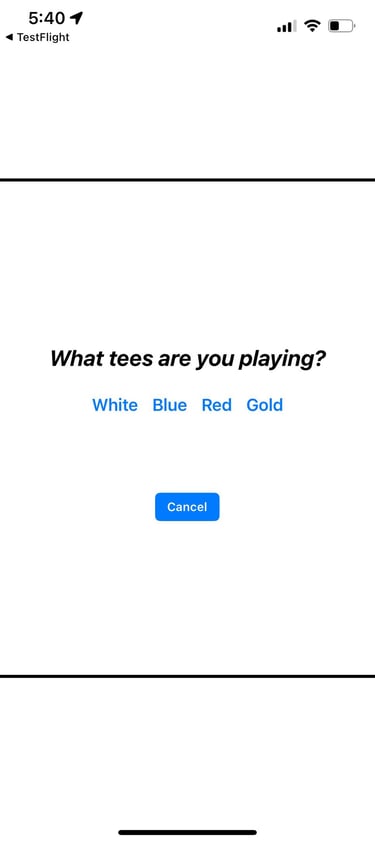
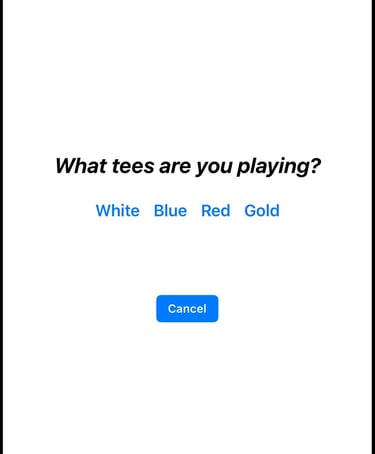
Choose Tees
Choose the tees you’ll play.
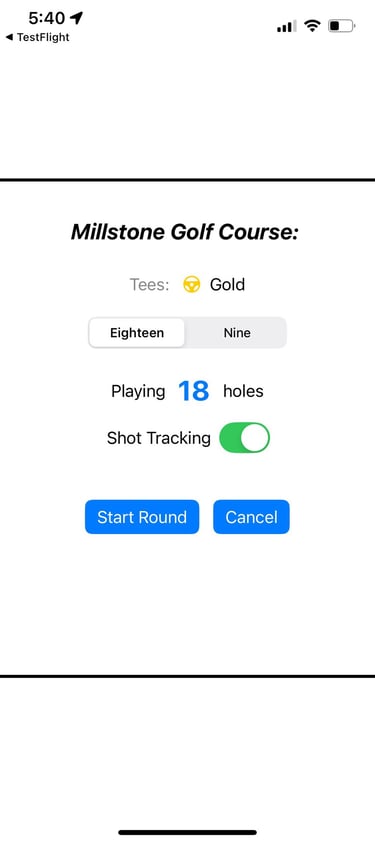
Round details
Choose 9 holes or 18.
Make sure Shot Tracking is set to On (default)
Tap Start Round.
Set your ball location
When you reach the tee box on your first hole:
Tap At My Ball - Tee Shot
This tells MyGolfShotZ where your first shot begins.
Yards to green + Choose club
Once your ball location is set, you’ll see the distance to the center of the green
Tap the club selector at the bottom to choose your club.
Rate your shot
Hit your shot, and rate it.
For calculating ZScore:
Your ZScore for the hole is the sum of these ratings.
ZScore Out, In, and Total Round ZScore are also calculated automatically.
Great! +15
Good +10
OK +5
Horrible! -15
Bad -10
Poor -5
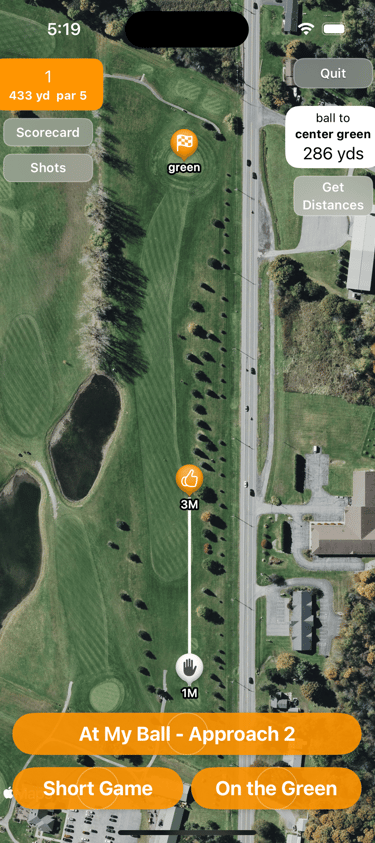
Next Shot
When you reach your ball again:
Tap At My Ball - Approach
MyGolfShotZ recorded the location, club and shot rating for your tee shot, and now it knows how far you hit that shot.
Repeat this process for every Tee and Approach shot:
At My Ball → Choose Club → Rate Shot
Get distances
At any time after marking your first shot location:
Tap Get Distances (upper right)
You’ll see a new map where you can get distances.
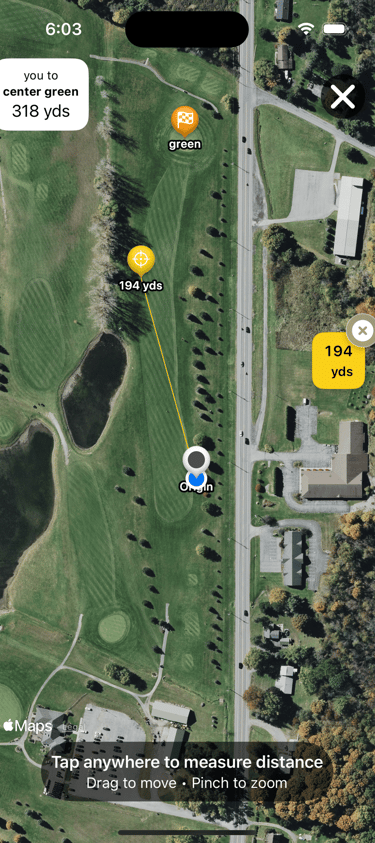
Tap for yardage
You will see a distance from your location to the center of the green.
The little blue dot is your current location.
You can tap anywhere to get a distance from your location.
Your location and center green yardage update automatically as you walk.
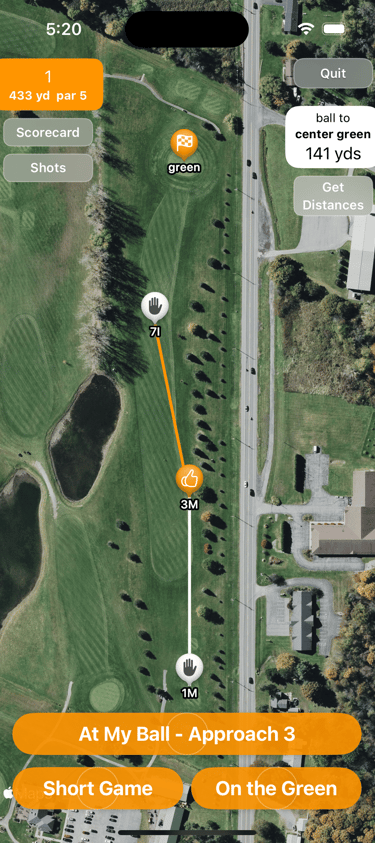
Near the green?
Once you hit your ball on or near the green, tap Short Game or On the Green and forget about your phone until the hole is complete.
You can add short game and putting details after your ball is in the hole.
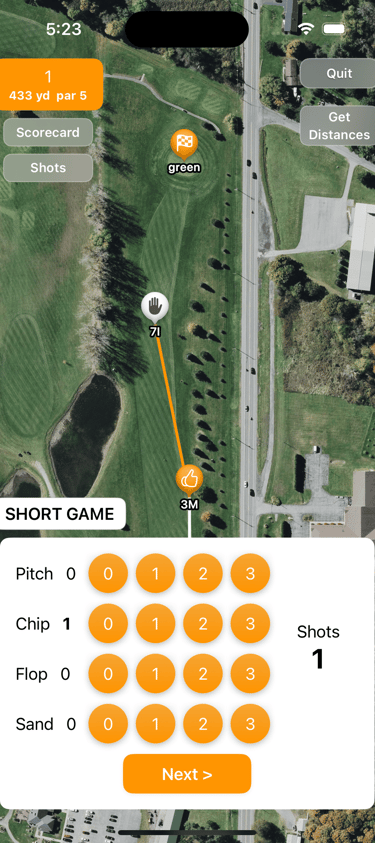
Short Game
Tap # of short game shots (Pitch, Chip, Flop or Sand)
Tap Next, then rate your short game.
Putting
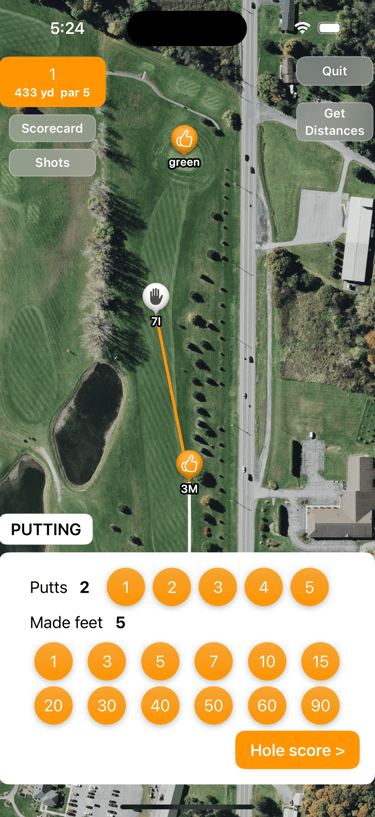
Tap # of putts, and the estimated feet of your last putt.
Tap Hole Score >
Finish Hole
Review:
Tee and approach shots
Short game shots
Putts
Penalty strokes
Tap Finish to move to the next hole.
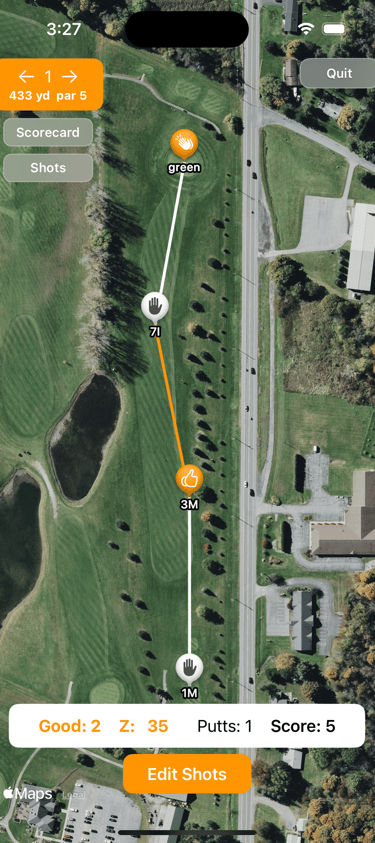
Review hole
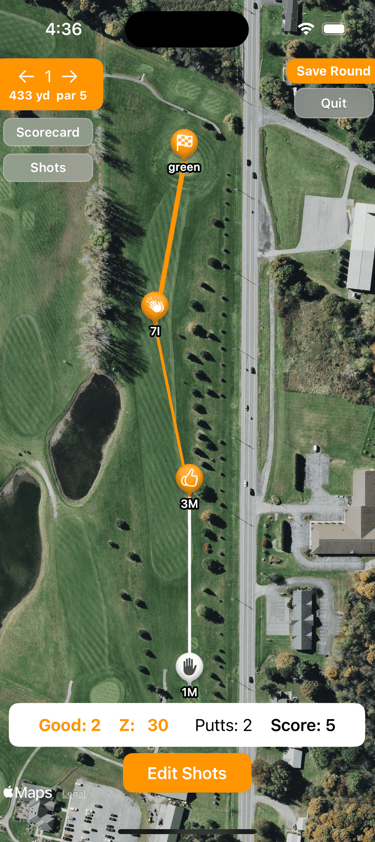
A hole that has already been played will show the number of Good Shots (including Great!) for the hole, and the hole ZScore, in the lower portion of the screen. ZScore is the sum of all rating scores for the hole
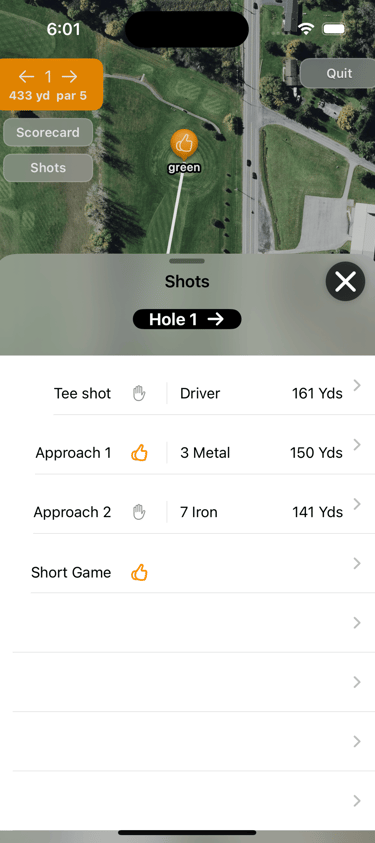
View Shots
Tap on Shots to see shots for a hole.
View Scorecard
Tap on Scorecard to see a scoring summary, including Good shots, ZScore, short game shots, putts, feet of putts made, and score.
Save your round
Once you've completed your round, tap Save Round to store it for later review.
MyGolfShotZ
Easily track and rate your golf shots.
© 2025. All rights reserved.
Ensemble Software LLC